


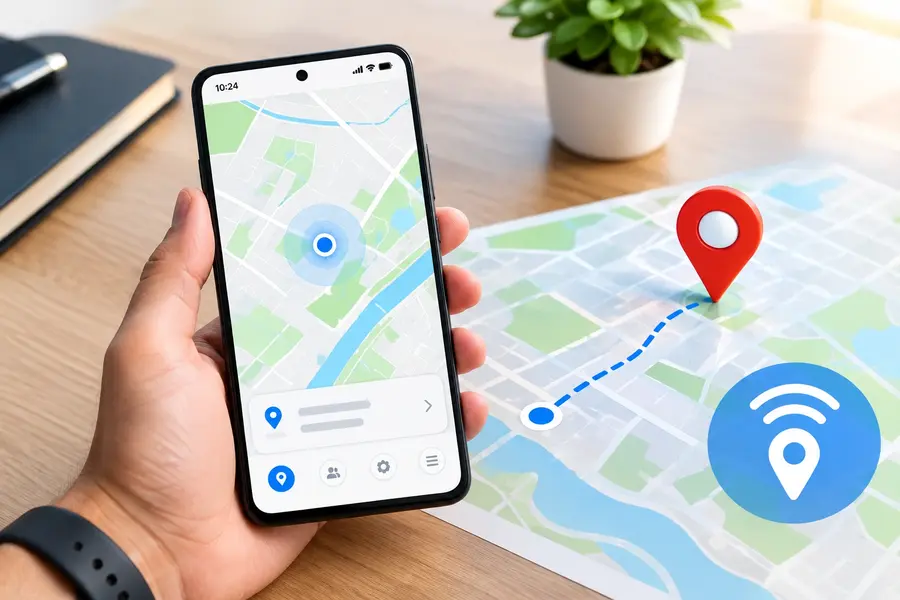

When you’re in need of information, but don’t know where your loved ones are, you can go crazy trying to locate your phone or broadcast your position. You need to be able to find your way on Android when you find yourself lost or when you are in charge of a busy meeting, so you have some peace of mind right away. Android has lots of accurate, free location tools that can help you to figure out what your exact location is on a map.
Why Tracking Your Android Location Matters
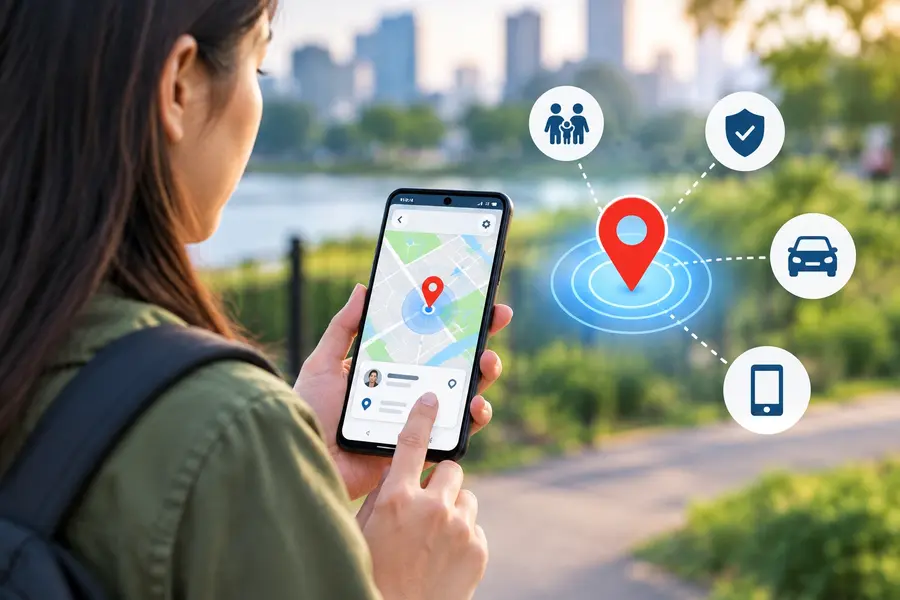
It is essential to know where your device is and how to track it in order to keep you safe, navigate efficiently and be more convenient. Built-in GPS technology helps you find your phone if you’ve forgotten that the couch cushion slips out of your pocket when you’re on a taxi ride.
Available also to keep your family members safe if they venture out alone at night or into the woods or hills on a new or unfamiliar path. Sharing your location takes the guess work out of it and ends all the need for frequent phone calls for check-in during long drives.
Turning On Location Services on Android
Your phone has to activate its basic location sensors before it can determine its precise location. You will see the Quick Settings panel, tap on Location to turn on GPS tracking.
Alternatively, you can access the main Settings app, scroll to the Location setting and enable the master switch. This screen will show you information about recent apps that have asked for your coordinates, and your background access.
Using Google Find My Device for Real-Time Tracking
Activating Find My Device on Your Phone
The main tracking mechanism for nearly all Android devices these days is Google Find My Device. You should make sure that it’s working by going to Settings, then tapping Google, then Find My Device, and then confirming that it’s turned on.
An active Google account, location turned on and mobile data or WiFi connection required. These essential functions remain active to enable Google to communicate with your phone even when it’s locked.
Finding Your Phone Using a Web Browser
In case your phone is lost, visit Find My Device web portal on any browser on your computer tablet. Use the same Gmail account you were signed to on your missing Android device.
The interactive map will show your phone’s current position or the last position if you went offline. The battery percentage and the name of the network you are connected to will also be displayed.
Ringing and Locking Your Phone Remotely
If you have located your phone, Find My Device affords you a variety of security controls remotely. The Play Sound option makes your phone ring at 100% volume for 5 minutes, muted.
In case the phone misplaced public area, choose Secure Device to safeguard screen PIN and show a contact phone number. If assumed phone has been stolen, Erase Device is available to completely erase all personal data from the phone.
Sharing Live Location with Google Maps
Sending Real-Time Tracking Links to Family
Google Maps makes it simple to share your real-time trip with family and friends. Use Google Maps, click your circle avatar in the top left corner and choose Location Sharing from the menu.
Choose how much you want your voice to play, for an hour or a full day, leave on automatically until turned off. Choose trusted contacts, receive a direct link to a map display you real-time you move.
Reviewing Your Travel History with Google Timeline
Google Maps Timeline feature automatically logs your trips locations. Tap your map icon Map app you’ll see trips you done for today, week month.
This history is completely private to you and can assist you go back in the event that you lose an article on the journey to work every day. You can stop tracking at any time, correct any wrong stops, and optionally have your history automatically deleted after a few months.
Comparison of Android Location Tracking Methods
There are different types of tracking tools and here is a comparison table to help you decide in which situation which is the best tracking tool for you.
| Tracking Method | Best Use Case | Accuracy Level | Account Requirement | Standout Feature |
| Google Find My Device | Lost or stolen phone recovery | High (GPS & Wi-Fi) | Google Account | Remote ringing, screen lock, and remote data erase |
| Google Maps Live Sharing | Temporary trip sharing with friends | Very High (Live GPS) | Google Account | Real-time moving pin with live battery percentage |
| Google Maps Timeline | Logging personal travel history | High (Past routes) | Google Account | Automatic trip summaries and saved location logs |
| Life360 Family Locator | Ongoing family safety circles | Very High (Live GPS) | Life360 Account | Geofence zone alerts, crash detection, and speed logs |
| WhatsApp Live Location | Quick meetup coordinates in chat | High (GPS based) | Phone Number | End-to-end encrypted sharing directly inside chat |
| Samsung SmartThings Find | Samsung Galaxy device tracking | Extremely High | Samsung Account | Offline tracking using nearby Galaxy network devices |
This will assist you in selecting the most convenient option for you, be it monitoring a loved one on a road trip or looking for a lost phone.
Best Habits for Accurate Location Tracking
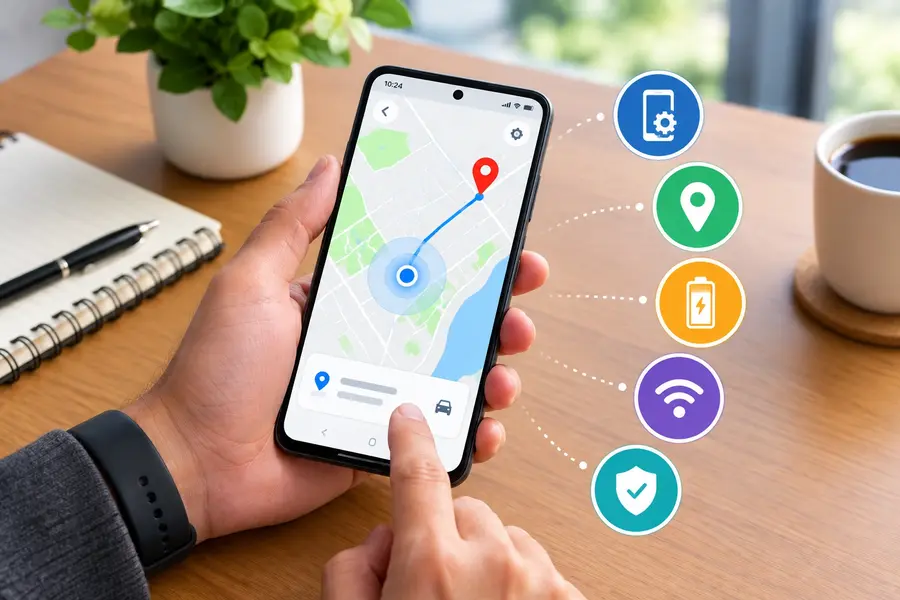
To get the most correct location data on your phone, without negatively impacting battery life, you should follow a few simple set-up practices:
- In your settings, set Google Location Accuracy to on, which will cause your cell phone to merge location information from GPS satellites, Wi-Fi and cell towers to locate where you are indoors.
- Remove key tracking apps from battery optimisation so that your battery does not drain when tracking apps are running in the background when your screen is off.
- Remember to keep the Wi-Fi and Bluetooth scanning functions on as background beacon signals will enable your phone to get accurate street location much quicker.
- Check your active Google Maps sharing links periodically to ensure that you’re not broadcasting your current location for longer than you need to.
Using Family Safety and Third-Party Locator Apps
Setting Up Life360 for Family Circles
Among the most popular third party safety apps for families wanting to keep an eye on each other is Life360. Download and install apps, create a private circle and add family members using invite code.
Their actual map location, the speed at which they are travelling and their battery charge can be seen by everyone! It is possible to configure “Home” or “School” or “Work” to be automatically notified when someone enters or exits.
Sharing Instant Live Location via WhatsApp
If you hurry to share your coordinates, but don’t want to install any extra software, WhatsApp neat feature in-built. To use the feature, click on the paperclip + icon in any single group chat and select Location from the list of attachments.
Click Share Live Location and select the time you want to store location, either 15 minutes, 1 hour or 8 hours. Your live icon displayed on a live map other person’s chat window you can end sharing at any time.
Boosting GPS Accuracy on Your Android Phone
When you get this kind of error, like your GPS location is off, or pointing you down the street from where you are, it’s time to give it a little boost. Tap “Settings”, “Location” and “Location Services” and make sure “Google Location Accuracy” is turned on.
This function leverages regular Wi-Fi network names, mobile tower IDs and satellites to pinpoint you. It blocks the signal bounce in dense urban areas with tall buildings and is good in covered parking garages.
Fixing Common Android Location Tracking Issues
Solving Background Battery Optimization Blocks
Android software’s background app killer can terminate live tracking apps because it aggressively kills background apps to conserve battery life. To prevent this use Settings, Apps, and select the app you are tracking or navigating with.
Tap Battery and select Unrestricted from the Power Profile. This easy fix keeps the app always running in the background while you don’t want it to be interrupted when you put your phone to sleep when communicating with GPS satellites.
Calibrating the Internal Compass and Sensors
If you are experiencing a misaligned location compass (pin) or a compass heading that is not correct, then the built-in magnetic sensors need to be calibrated. Tap on the blue location dot on Google Map, and choose the Calibrate option on your screen.
Gently tilt the cell phone and slowly do a figure 8 with it, 3 or 4 times. Your beam around your blue dot will get narrower and narrower, so that your phone is sure of your direction.
Managing App Permissions and Privacy Controls
While there’s strength in location tracking, it’s essential that you always know which applications should have access to your personal movements. Tap on Settings on your phone, then Privacy and Permission Manager to see all applications that have location permission.
Restrict apps to “Allow only while using the app” status for apps that are sensitive, such as online shopping, social media and banking apps. This will make commercial platforms unable to keep tabs on your daily activities without you knowing it, and keep your GPS current for maps and emergencies.
Finding Your Lost Android When Offline
No more, when you lose your phone, you will still have the ability to access a satellite telephone, even if there is no cell phone service.There’s no more needing to be helpless when your phone goes missing in an area with no cell phone service available. Recently, Google has improved its Find My Device system to track off-the-grid Android phones via encrypted signals from nearby Android phones via Bluetooth.
If your phone is off-line, nearby Android handsets will securely detect your phone’s
Bluetooth beacon and communicate the approximate location of your phone back to your dashboard. This network is crowdsourced and runs automatically in the background and doesn’t infringe upon anyone’s personal privacy or data security.
Final Thoughts
With Android, being located is easy and effective, helping to keep your phone secure and connected to the people that matter most. With Google Find My Device, real-time location sharing on Google Maps, and family safety apps, you have several effective options at your fingertips.
Just take some minutes today to play with and test out Find My Device before you need it, by checking your location settings and switching to high accuracy. The features you’ll see now will help you locate your device at any given time and share your experiences with complete peace of mind.