


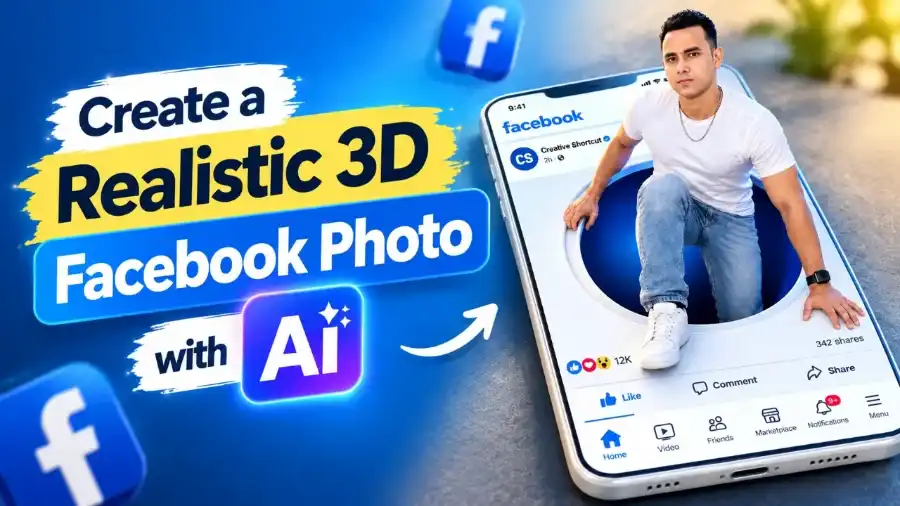

Thanks to the latest AI technology, it’s actually very simple to transform a flat portrait into a beautiful 3D sculpture.Using AI tools, you can easily convert a 3D photo of a person into a stunning 3D image. In this tutorial, you’ll learn how to use AI to get a realistic 3D Facebook photo starting from the selection of the right photo to creating the final image for a Facebook profile.
These tools employ smart algorithms to isolate the subject from the background, introduce a layer of depth and apply realistic shadows to ensure the photo really stands out. This means that you will have a 3D profile picture that will pop out in your followers’ feed without having to edit it or use a costly editing program.
What Is a Realistic 3D Facebook Photo?
A photo of a portrait that is rendered in a 3D fashion, suggesting depth – by separating the subject from the background using layered visual effects – is a realistic 3D Facebook photo. The method uses depth mapping, realistic shadow placement and slight changes in perspective adjustment to fool the eye into thinking there are three dimensions on a flat screen.
It’s important to note that it’s not a 3D style image, rather Facebook’s own interactive 3D photo feature that requires a depth-map image in a certain file format. You are designing a visual effect which looks three-dimensional in a conventional image, and can be applied to any normal post or profile update on Facebook.
What You Need Before Creating a 3D Photo
The first, and most critical, rule is to get a clear image of the person with good lighting, focus on the individual’s face and a contrasting background. Photographs with very little light, low contrast, or unclear images will not work well as the AI has not been able to detect the faces and edges properly.
Also, you need a dependable AI photo editor or depth-effect application to use on your mobile phone or computer and a stable internet connection for you to use the cloud-based applications. The majority of apps support common image formats such as JPEG and PNG, so ensure that your photo source file is in a compatible format prior to starting the editing process.
How to Create a Realistic 3D Facebook Photo with AI
The method is simple, and can be executed in a matter of minutes, as long as you have your image source and tool of choice ready to go. Here are the steps to creating a basic portrait into a realistic 3D portrait that will look professional and attractive on your Facebook profile.
- Shoot a photograph that is well lit, has a clear subject and little background.
- Make sure to download the AI image editing software from a trusted website or the official app store of your device.
- Upload the picture and select the 3D portrait, depth effect or background-separation effect.
- Change the angle, depth, direction and intensity of the light and shadows.
- Smooth out edges of hair, shoulders and clothes to avoid any halos or artefacts.
- Pay attention to the outcome and fix any visual inaccuracies or misrepresentations of the face.
- Create an image that can be uploaded in a high resolution that matches Facebook’s recommended upload size.
- Post the completed photo to Facebook and see how it looks in your feed or your preview in your profile.
Remember all the steps and options available are going to differ according to the editing software used. Some tools can do everything in one fell swoop, with just a click of the mouse, while others allow you to fine tune each depth layer and lighting source adjustment individually.
Best AI Features for Realistic 3D Portraits
The most critical aspect is the ability to accurately detect the subject in the image, so that the AI can clearly differentiate the face from the background. If the depth effect is not detected correctly, the effect will not be uniform and the edges around hair and clothes will be clearly synthetic.
Another useful function is the automatic correction of lighting, which adjusts the image to a standard level, whereas the other is realistic shadow generation, which should not cause any skin texture to be over-smoothened in the shadows.
How to Write an Effective AI Prompt
If the tool you’re using text tool, accept text prompt, detailed description of desired effect aid quality of output. State topic, background style, light direction, depth level, camera angle anything else you wish AI retain accentuate naturally.
You use model prompt; change suit image creating: “Using a photo, realistic portrait style of 3D graphics. Preserve the person’s identity facial features from photo, add subtle depth between subject background, add lighting and shadows, preserve texture of skin photo, avoid making facial details look distorted faces. Make point check results for correctness quality before posting them online.
Tips to Make Your 3D Facebook Photo Look Realistic
The best results will come from the source you use and how you edit it—a set of tools doesn’t make the difference. Be sure to start with a sharp image that is well lit to use moderate depth and not dramatic effects that make the subject appear unnaturally removed from the background layer.
- Avoid using too many filters or smoothing/reshaping filters to the face.
- Coordinate direction of light background light shade of subject.
- Make sure edges of hair clothes neat avoid any visible halos jagged edges.
- Before exporting, see if proportions are correct and shadow placement is correct.
- A pleasing background blur, rather than a too extreme bokeh effect that overpowers the subject.
- There are some potential pitfalls to steer clear of.
Common Mistakes to Avoid
One of the common errors people make is taking the initial output from AI without verifying the images for any faces that are out of focus, shadows that do not make sense, or warped faces. The machine’s algorithms sometimes cause faces to be elongated, eyes to be misaligned or shadows to fall in the wrong direction from the light source.
The other problem is using too much background blur, which can make the “depth” effect look fake or distract from the overall look. Solutions to this include decreasing the amount of blur, sharpening the edges of the subject matter, and taking a look at the edited image and compared with the original to see if the composition remains natural and balanced.
Free vs. Paid AI Photo Editing Tools
While free AI editing tools can deliver surprisingly good results when it comes to basic 3D effects, they may also include certain limitations like watermarks, reduced export resolution, and limited access to more advanced features like Depth Mapping and manual edge refinement. They are effective for people who use them for occasional editing and don’t require a subscription service.
In most cases, paid subscription tools will provide better quality results, enhanced editing capabilities, batch processing, and have first access to the newest AI models and features. To ensure that the tool is sufficiently realistic and customizable for your Facebook photos, try using the free version first before upgrading.
Comparison Table: AI 3D Photo Editing Methods
This table contrasts the primary tools that can be used to create 3D portraits so you can select the method you’re most comfortable with and most aligned with your objectives. Both methods have their own pros and cons which determine the quality of the image you edit.
| Method | Ease of Use | Depth Control | Realism | Customization | Best For |
| AI portrait editors | Very easy | Moderate | High | Limited | Quick results |
| Background-removal tools | Easy | Low | Moderate | Basic | Simple separation |
| Depth-effect apps | Easy | High | High | Moderate | Layered depth |
| Manual photo editors | Difficult | Full control | Very high | Extensive | Professional edits |
If you are a beginner, having an AI portrait editor or an app that offers depth effects is a great choice for a lot of people as it is simple, yet still very effective without needing to be a technical master. For more advanced users, there are manual editors that provide finer-grained control over all layers, shadow and perspective corrections for the final composite.
How to Upload Your Finished Photo to Facebook
When you have created your 3D portrait, save it to your device in a high resolution file format: PNG or JPEG and as a recommended Facebook upload size. On the Facebook app or site, go to your profile or feed and tap to make a new post or change your profile picture.
Select the edited image from your gallery, check the preview to ensure that the depth effect works as intended on the platform, and write a caption, if any. Remember, Facebook’s user interface and supported photo attributes are changed on a regular basis, which means that your 3D photo may not look like a 3D photo, but instead look like a flat one.
Privacy and Image Quality Tips
When installing editing apps from third parties, select apps from trusted app stores, and check the permissions that the app is asking for before uploading personal photos to the app. There are a number of lesser known apps on the market.
Related article: Best AI Photo Generator Tools for Realistic Portraits – AI Motorcycle Prompts Glam
Though, that might keep your photos on their servers, or use them for training purposes: so read the privacy policy carefully before granting access to your personal photos.
Create Professional 3D Portraits with the Right AI Tools
AI’s capability to generate a realistic 3D photo from a Facebook selfie can be an enjoyable and rewarding experience. The key to a successful outcome is to choose a good source image, select the appropriate AI tool and use the depth effects judiciously – not to the extreme.
Create an ultra-realistic, high-quality 3D cinematic image using the uploaded reference photo of the man. Preserve his exact facial identity, face shape, hairstyle, skin tone, and natural appearance.

Main Concept: A giant, tilted white smartphone tablet displaying a Facebook-style social media interface. The man is climbing out of a large circular opening in the center of the screen, as if emerging from Facebook into the real world.

Person: The man wears a plain white fitted T-shirt, light blue jeans, white sneakers, a silver chain necklace, and a wristwatch. He is in a realistic climbing pose, with one knee raised toward the camera, one hand gripping the edge of the circular opening, and the other hand resting on the phone screen. Natural facial expression, realistic anatomy, detailed skin texture.

Facebook Interface: Blue Facebook logo at the top left, a profile section labeled “Creative Shortcut,” a small verified badge, realistic reaction icons, Like and Comment buttons, share count, and bottom navigation icons. Use a clean white interface with blue accents, inspired by a social media feed.

Composition: The giant smartphone lies diagonally on a smooth gray floor. The circular opening has a deep blue interior. The man emerges naturally from the opening, creating a convincing 3D pop-out effect. Full body visible, shoes clearly visible, realistic perspective and depth.

Lighting: Warm golden light from the left, cool blue light from the right, cinematic studio lighting, soft shadows, realistic reflections, premium commercial photography.

Quality: Photorealistic, ultra-detailed, 8K quality, sharp focus, professional 3D rendering, realistic proportions, clean composition, high dynamic range.

Important: Use the uploaded photo as the identity reference. Do not change the person's face. Avoid distorted hands, extra fingers, duplicate limbs, misspelled text, blurry details, or unnatural body proportions.

Aspect Ratio: 4:5 vertical portrait.
Create stunning, realistic 3D Facebook photos with AI! Transform your ordinary portrait into an eye-catching 3D.
| AI Portrait Maker |
|---|
| 3D Image Generator |
| Get more Realistic 3D |
Another function is the enhancement of portrait pictures, which sharpens facial details while not diminishing any skin texture in the shadows. One of the more advanced editors also features perspective controls to allow for a node of the camera in the images being taken to create a dramatic depth of field in the final picture.
Carefully look at your edited photo and make sure that the edges and shadows are fine, before you post it to your audience on Facebook. With some practice, and attention to detail you can always feed “perfectly” posed 3D-style portraits that will surely make your social media feed “POP”.