



Your cell phone contains more personal details than you’d like your friends or strangers to see, including private text messages, family photos, banking information, work files and more.
Whether you’re sharing your phone for a specific purpose or just looking for added security, the ability to hide and lock apps on Android is a very practical feature that can help you feel more secure in your daily digital experiences.
Whether you want to use built-in privacy features, manufacturer’s tools such as Samsung Secure Folder, or trusted third-party privacy tools, this guide offers you the options and information you need to make the right choice for your device model and lifestyle.
Why Should You Hide or Lock Apps on Android?
Most people will use their phones for highly sensitive activities such as online banking, private communications and sharing their personal photos and photos deserve appropriate protection from access by anyone who might have momentarily borrowed your phone or picked up your unlocked phone.
Parents often need to limit their child’s social media and game access to safeguard personal applications and to ensure that young children aren’t making in-game purchases or exposed to inappropriate content when they are using these for entertainment.
Employees who use their devices at work who share them with other employees might also wish to separate work-related communications and confidential work files from personal use of the device to establish a clear distinction between work and personal life.
Difference Between Hiding Apps and Locking Apps
Hiding an application will remove it from your Home screen and App drawer and other users will not notice that it is installed on the phone, but will be running in the background and receiving notifications as usual.
The app lock is different, since the app is still on your phone and you have to enter a password, PIN, pattern or unlock with your fingerprint to open the app and have access to its private contents.
This is because hidden apps are more difficult to find and locked apps are not able to open without your authentication, so it’s two layers of security that will keep your sensitive data safe.
How to Hide and Lock Apps on Android Using Built-In Settings
Thanks to a number of modern Android phone models, there are alternatives available to hide apps without needing to install extra apps from the Play Store or give them additional permissions.There are alternatives available many modern Android models have built-in options for hiding apps without having to download extra apps from the Play Store or grant extra permissions.
In the Settings menu of your phone, go to the Home Screen, Privacy and/or Apps section and look for the item called Hide Apps or something similar, depending on the manufacturer of your phone.
Once you have picked the apps that you want to hide, just tap on the Save button to confirm your selection and the selected apps will instantly get removed from your app drawer/ home screen in a matter of seconds.
If you want to use a hidden app later you can reopen the same settings screen to unhide it or type its name in the search bar in the settings screen, but keep in mind that menus and features available may differ among Android versions.
How to Lock Apps on Samsung Phones
The most remarkable feature Samsung has is its Secure Folder, which creates an encrypted hidden bay to store applications, photos, documents and other sensitive files without having to interact with your user interface or current storage.
To enable this feature, you need to go to Settings, then Biometrics and Security, and tap Secure Folder to proceed with the set up where you will create an additional password or use fingerprint authentication just for this private folder.
After you configure this feature, you can add any app you installed to the Secure Folder by tapping Add Apps in the Secure Folder and even hide the Secure Folder icon from your app drawer if you’re using a device supported by Secure Folder (for extra privacy).
Note that this feature will need an active Samsung account and will not work with all older Galaxy devices with outdated software versions; check the compatibility of your Galaxy devices with this feature before using it as your primary security solution.
How to Hide and Lock Apps on Xiaomi, Redmi, and POCO
Xiaomi devices with MIUI or HyperOS have a special app lock feature, found in the Security app or in the main settings of any Xiaomi device.
Once the app lock is activated, you will get a list of all installed applications with toggle switches to enable/disable the extra security by setting a unique password or fingerprint scan for specific applications.
In addition, most models include a feature called Hide Apps in the system that takes selected app icons off the home screen and app drawer completely, but allows the apps to remain fully functional and hidden with special gestures.
If you can’t find a specific setting in the listed category, try going through the various settings categories on your device; the name of the menu and features available within it may differ from one version of MIUI to the next and from the newer HyperOS UI.
How to Hide and Lock Apps on Other Android Phones
For the brands, OnePlus and OPPO provide a Hidden Space or App Lock option which can be accessed from their customised settings menus; Realme and Vivo have similar options in their security or app management settings.
Motorola and Google Pixel phones are a little different, as they concentrate on the built-in security aspects of Android, like numerous user profiles and the freshest Private Area feature on newer Android variations, which provides additional privacy.
Also, there are different kinds of privacy protection available on various Android phones, which means not all of the hiding techniques you find available will be supported by your phone or its software version, so make sure to check your phone’s settings and software version before claiming that they will all support the hiding ways you find.
Best Third-Party App Lock Apps for Android
If you don’t have an app locking feature on your phone, there’s a program that you can download through the Google Play Store for Android that will let you put a password and fingerprint lock on any application that you have installed on your Android phone.
Some of the popular ones include AppLock by DoMobile and Norton App Lock; however, it is important to note that it might not be available for every Android version and would be wise to check with the app before installing it as a security app.
When installing any third party privacy app, check out the developer information, users ratings, and the exact permissions that the app is requesting to ensure that it is a safe and trustworthy app for handling your personal data and information.
As with any third-party app locker, technologically advanced users can sometimes work around the system by booting into safe mode or by forcing apps to close, so this might not offer as much hardware-level security as an app locker made with the system, such as Samsung Secure Folder.
Built-In Android Privacy Features You Should Know
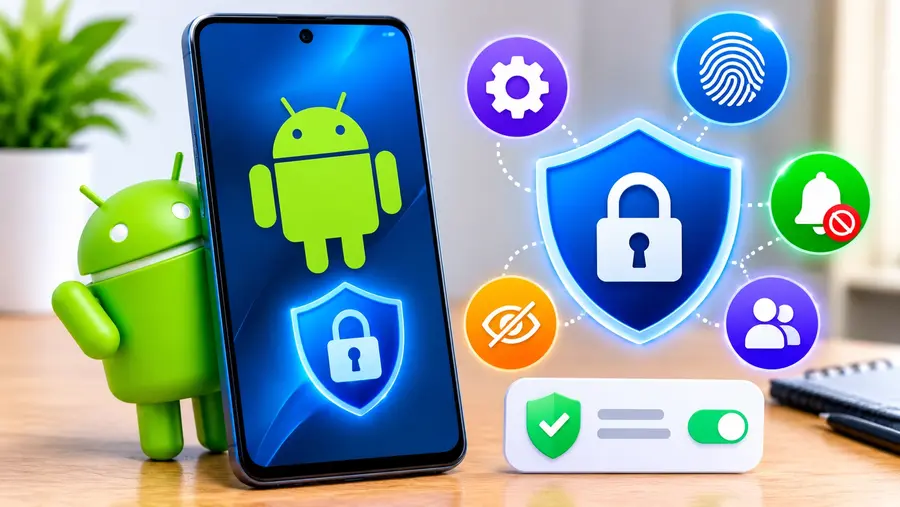
Android 15 added a new feature that lets you create a private space on your device, where you can install and store any apps that you keep in a secure manner, and don’t appear in your app drawer, notifications, and on your phone screen until you unlock it.
In addition to app hiding, you can use the Permission Manager in your Android settings to manage the access you give to your camera, microphone, location and other sensitive information that could be used inappropriately by an app, to the detriment of your privacy.
Other useful features include notification privacy settings that enable hiding of a message preview from your lock screen, temporary sharing with guests and the ability to create multiple user profiles and have your own workspace on the same phone.
Comparison Table: Different Ways to Protect Android Apps
The comparison table below outlines the primary techniques that are available to protect your Android apps to help you quickly compare and contrast the essential features, level of security, and the app’s device compatibility to determine which technique is best for you.
| Privacy Method | Main Purpose | Password Protection | Availability |
| Built-In App Hiding | Removes app icons from view | No | Varies by brand |
| Built-In App Lock | Requires authentication to open apps | Yes | Varies by brand |
| Samsung Secure Folder | Creates an encrypted private space | Yes | Samsung Galaxy devices |
| Android Private Space | Hides apps in a locked profile | Yes | Android 15 and newer |
| Third-Party App Lockers | Adds lock to any app | Yes | Most Android devices |
Please remind that these features might not be available on your device as it depends on your device compatibility and the version of Android that you are using, so you should check the supported features in your device settings before you try to use them, to avoid any single method.
Common Mistakes to Avoid When Hiding or Locking Apps
A big mistake that users make is using an app locker that is from an unknown source and might have malware or be able to access your personal data without your knowledge, rather than securing your Android apps from unauthorized access.
Yet another mistake is choosing a weak password such as a simple string of four numbers, or even your birth year which can be easily guessed by anyone who knows you and undermining the entire purpose of locking your private applications.
Additionally, many users do not disable notifications for their hidden or locked apps, so that the text of incoming messages and notifications can still be seen on the lock screen, even if they are using a password to hide or lock the app.
You should also not forget to save the recovery information or else you will be very distressed if you lose access to your locked folder or application and you don’t have a means to recuperate.
Extra Tips to Improve Android Privacy
A strong screen-lock password or biometric authentication should be used as your first line of defense as even the best app lock is of no use if someone can easily unlock your phone with a simple PIN.
Use 2 factor authentication for all important accounts – email, banking, social media – if someone is able to get into a locked app, they can’t log in without the 2 factor authentication code.
Regularly check app permissions at least every few months and delete any apps you no longer use, as otherwise they could become security risks if they are no longer receiving the software updates that are critical for them.
To improve the overall levels of privacy and security for your personal information on your smartphone, here are a few additional tips:
- Install apps from the Google Play Store or trusted sources, don’t get malware or spyware apps.
- Ensure that your Android system and security patches are always current, as new vulnerabilities and software exploits are discovered that can be exploited.
Keep Your Android Apps Private and Secure
Don’t give anyone your unlock PIN or fingerprint information, unless you are 100 percent confident that they are completely trustworthy with your personal information.
Related article: Hide Apps from App Drawer on Android – Ssk Hide App Me
In normal uses, knowing how to hide and lock apps on Android can be a great way to keep your most sensitive information safe from unwanted access and add to the privacy of your smartphone.
| Lock Hidden Apps |
|---|
| Android App Locker |
| Hide Apps Samsung |
Before you look at any Play Store third party apps that might need permissions and regular updates, take a look at what your device has to offer in terms of built-in security features, including app hiding, Secure Folder and Android Private Space.
Depending on the device you’re using and your level of comfort, you can select one or a combination of the aforementioned methods; just be sure to use the same one consistently, and implement it along with app protection, a strong password, biometrics, and regular software updates for maximum privacy and security.